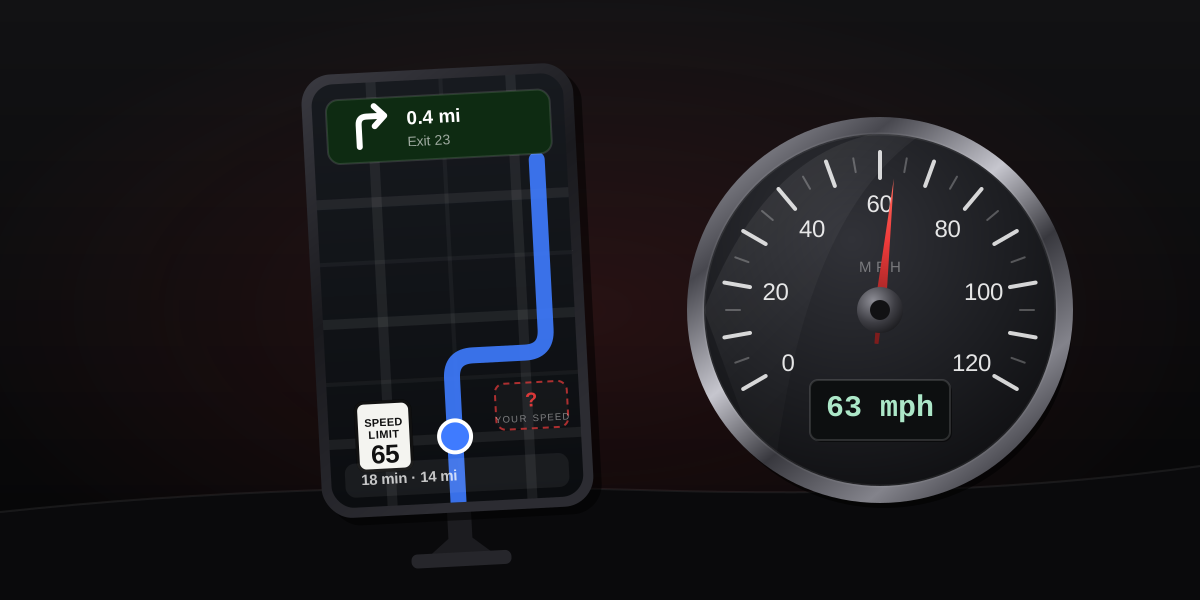
Apple Maps knows the speed limit of the road you are on. It will not tell you how fast you are going on it. That asymmetry has survived every iOS release to date, and the iOS 27 update, shipping this September, does not touch it. Here is what Maps actually got this year, why the missing number matters more than it seems, and the three ways to put a live speed on your iPhone screen today.
What Apple Maps shows, and what it does not
The confusion comes from two numbers that sound alike and are not.
The speed limit is a property of the road. Apple Maps looks it up from map data and can display it while you navigate. The toggle lives at Settings → Maps → Driving → Speed Limit, and it only appears during active turn-by-turn navigation, not while browsing the map or driving without a route set. Coverage varies by region, and because the figure comes from a database rather than from reading signs, it can lag a recent re-signing.
Your speed is a live measurement. The iPhone's GPS chip computes it continuously from satellite signals, and any app is free to ask for it. Apple Maps does not ask, or at least does not show it. There is no toggle, no hidden setting, no CarPlay option that turns it on. Threads asking how to enable it have accumulated on Apple's own support forums for years, and the honest answer in every one of them is that the feature does not exist.
So the map can tell you that the road is a 65 zone while declining to mention that you are doing 73. The one number a driver most wants next to a limit is the one that is not there.
iOS 27: what Maps actually got
iOS 27 was announced at WWDC on June 8, 2026, is in public beta now, and ships in September. Maps received a real list of changes:
- An AI-enhanced Flyover with sharper aerial detail in select cities
- Local Lists, a US-only feed of trending restaurants and places
- Clearer labels and smarter zoom in offline maps
- Natural-language routing: ask for directions that avoid tolls or highways in plain words
- More accurate Visited Places, expanding to more regions
- A Parked Car widget for the Apple Watch Smart Stack
Notice the shape of that list. It is discovery, imagery, and convenience. Nothing in it is about the drive itself, and nothing in it involves your speed. For the ninth major release running, the speedometer request stayed on the forum threads and off the release notes.
We are not going to speculate much about why. The most common guesses are that Apple considers the car's own dashboard sufficient, that a speed readout invites liability arguments, and that Maps' design philosophy trims anything not strictly navigational. Take those for what they are: guesses. What is not a guess is the result, because Google went the other way.
Google Maps did add one, in 2024
Google Maps has shown a speedometer on Android for years, and in July 2024 Google rolled it out to iPhone and CarPlay globally. It is off by default: tap your profile picture in Google Maps, then Settings → Navigation → Speedometer. We cover the full setup, including the Android differences, in our Google Maps speedometer guide.
So on the same iPhone, the same GPS chip, and the same roads, one navigation app shows your speed and the other does not. That alone settles the occasional claim that iOS somehow prevents it. It does not; Apple simply has not built it.
Why the missing number actually matters
It would matter less if the dashboard needle were the truth. It is not, by design.
Car speedometers are calibrated to err high, because regulators penalise under-reading and manufacturers leave margin for tire wear and size variation. The typical result is a needle reading 1 to 3 percent above your true speed, and often a few mph at highway pace, which we unpack in why your car's speedometer disagrees with GPS. GPS speed, measured from satellites independently of the car, typically lands within 0.5 to 2 mph of truth outdoors.
Put the two facts together with speed cameras, tolerance thresholds and average-speed zones, and the gap stops being trivia. When Apple Maps flashes a 65 sign at you, the number you need beside it is the honest one, not the flattering one. The map declines to provide it; your dashboard provides a biased version of it.
Three ways to see your speed on iPhone
1. In the browser, with nothing installed
Safari supports the standard Geolocation API, so a GPS speedometer in the browser gives you a live reading with no download and no account. Open it, grant the location permission, and the dial is live within seconds outdoors. It also pairs with a GPS odometer for distance. The honest limitation: a browser tab does not keep measuring in the background the way a native app can, so it is a glance tool, not a trip recorder.
2. In Google Maps, if you navigate with it anyway
If you already navigate with Google Maps, enable its built-in speedometer and you get speed and navigation on one screen. It is a small readout in the corner and it is informational rather than precise-looking, but it is there, which is more than Apple Maps offers.
3. In a dedicated app, if you want the drive recorded
A dedicated speedometer app earns its place when you want more than a glance: a big readable dial, trip recording, history. Our own Speedometer: MPH Tracker GPS shows the same analog dial as the web version and adds what a browser cannot do: every drive recorded with distance, duration, top and average speed, route replay on a map, HUD mode that mirrors the display for windshield reflection at night, and a personal-best tracker. If Apple Maps ever adds a speedometer, it will show you the number; a drive log is the part it will still not do.
Will Apple ever add it?
Unknowable, and we will not pretend otherwise. The feature is plainly feasible, the demand is visible on Apple's own forums, and the competing app on the same platform has had it since 2024. iOS 27 shows where Maps investment is going instead: imagery, discovery, and natural-language routing. If a speedometer ships in iOS 28, this article will get an update the same week. Until then, the three options above are the real answers.
The takeaway
Apple Maps shows the road's number and hides yours, and iOS 27 leaves it that way. The gap matters because the dashboard needle reads high by design, so "just look at the dash" hands you a biased figure precisely when a camera or a limit makes the true one valuable. A browser speedometer fixes it in ten seconds with nothing installed, Google Maps fixes it inside navigation if you use it anyway, and a dedicated app adds the recording that neither map will do. The limit is on the sign. Your speed should not be a mystery next to it.