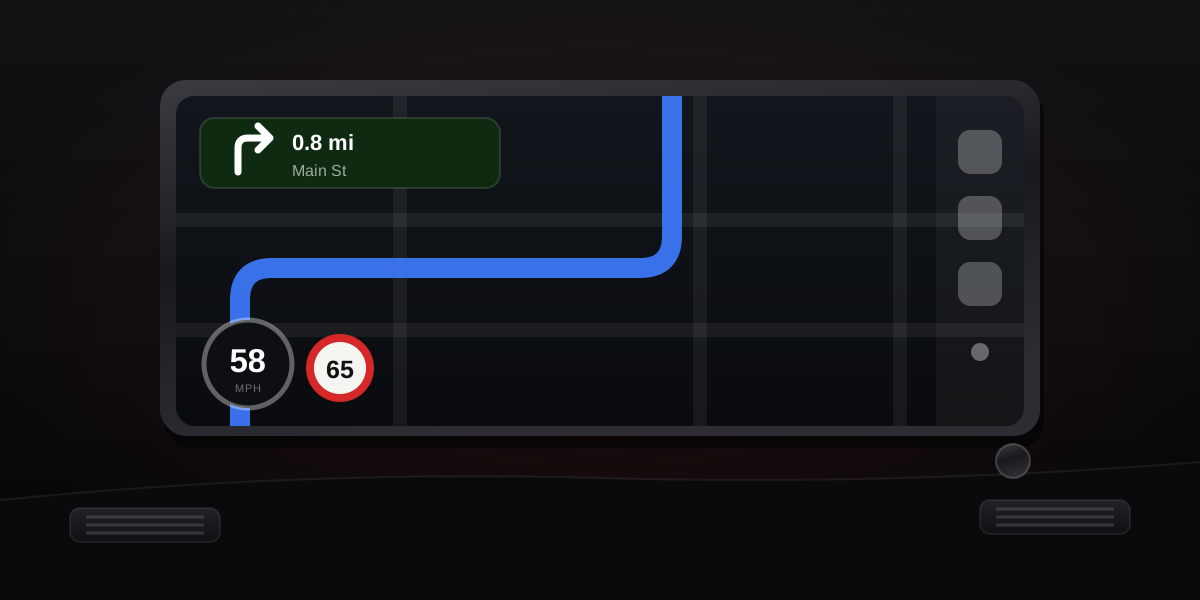
CarPlay itself, no — it is a projection layer with no speedometer of its own. Whether a speed appears on the car screen is decided entirely by the app you project onto it, and the three big navigation apps give three different answers: Waze always, Google Maps sometimes, Apple Maps never. Here is the full map of what works, why an option you enabled may still be missing, and the fallbacks when nothing on the car screen helps.
The short version
| On the CarPlay screen | Current speed | Notes |
|---|---|---|
| Waze | Yes, always | Shows even without a route; limit badge and over-limit warnings included |
| Google Maps | Yes, if rolled out to you | Bottom-corner readout since mid-2024; gated server-side per account |
| Apple Maps | No | Speed limit only, during navigation — no current speed in any setting |
| Dedicated speedometer apps | Rarely | CarPlay's category rules keep most of them off the car screen |
Waze: the dependable option
Waze treats the speedometer as a first-class citizen on CarPlay: it appears whenever you are driving, navigation running or not, next to the posted limit, and turns red with an alert when you cross the threshold you have configured. The display settings live in the phone app — search button → gear → Map display → Speedometer — and what you configure there is what the car screen shows. For how honest that number is and how to tune the alerts, see is Waze speed accurate.
Google Maps: enabled is not the same as available
Google brought its speedometer to iPhone and CarPlay in mid-2024 — a small readout in the bottom corner that changes colour over the limit. The catch that fills forums: the toggle under profile picture → Settings → Navigation → Speedometer only expresses a preference. The feature itself is switched on server-side, account by account, so two identical iPhones can behave differently and nothing you do locally — reinstalling, toggling, updating — forces it. If it has not reached you, the honest answer is to wait or use Waze. Setup details for both platforms are in our Google Maps speedometer guide.
Apple Maps: still nothing to enable
On CarPlay as on the phone, Apple Maps shows the road's speed limit during navigation and declines to show your current speed — there is no toggle, and iOS 27 did not add one. We covered that gap, and what it says about Maps' priorities, in Apple Maps has no speedometer. If your car pairs CarPlay with Apple Maps by habit, the car's own dial is your only speed reference — and that dial reads high by design.
Why your speedometer app is not on the car screen
Apple limits CarPlay to approved app categories — navigation, audio, communication and a few more — so a standalone speedometer rarely qualifies for projection. The practical split that works: navigation with a speed readout on the CarPlay screen, dedicated speedometer on the phone itself, mounted where you can glance at it. The phone side is where the deeper features live anyway — trip recording, history, and HUD mode for night driving — which is the territory of the iPhone speedometer options and our own Speedometer: MPH Tracker GPS app.
Whichever screen shows it, the number is the same
Every option above projects your iPhone's GPS speed — the car screen adds no measurement of its own. That means the reading carries GPS characteristics wherever it appears: within about 0.5–2 mph of truth outdoors, roughly one update per second, a momentary lag under hard braking, and dropouts in tunnels. It also means it will usually sit a couple of mph below the car's own dial, because dashboards are calibrated high on purpose. If that gap surprises you, measure your car's exact bias with the car speed test and the error calculator.
The takeaway
CarPlay shows your speed only if the projected app does. Waze does it unconditionally, Google Maps does it where the rollout has arrived and not a mile before, Apple Maps does not do it at all, and the category rules keep most dedicated apps off the car screen entirely. The number, whichever app renders it, is your phone's GPS speed — the honest figure your dashboard is politely inflating.