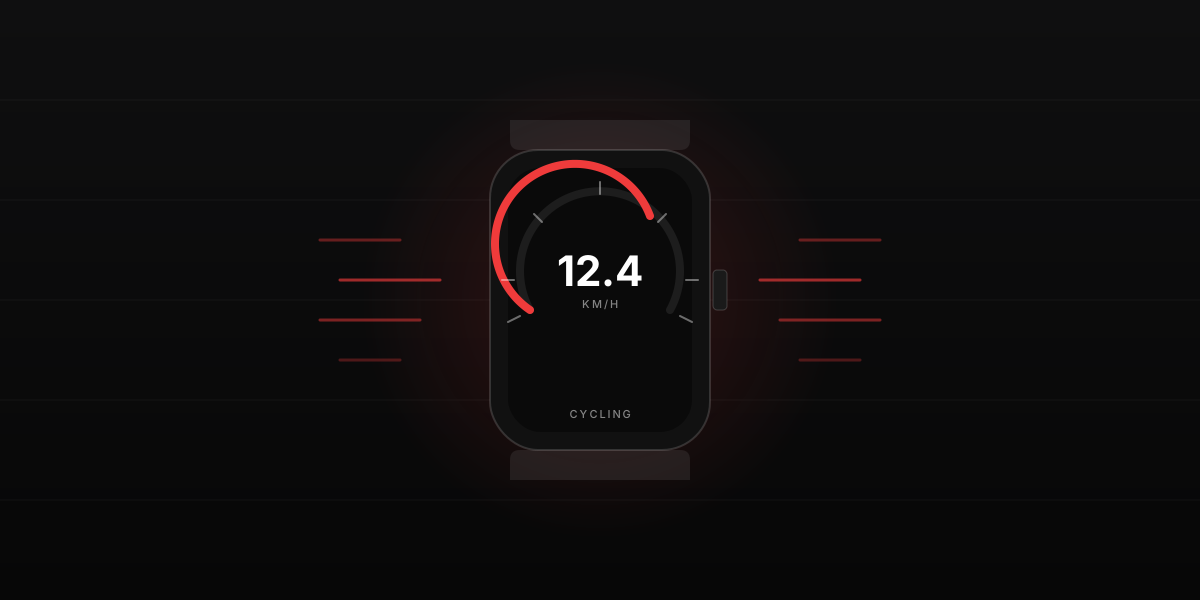
The Apple Watch has had a built-in GPS chip since Series 2. That makes it perfectly capable of measuring your speed without an iPhone nearby. What it does not have is a single speedometer app you can open like a watch face. The speed shows up in several places, each fit for a different use case. Here is where to find it and which option to pick for driving, cycling, running, or just satisfying curiosity.
1. Workout app (the most useful native option)
For cycling, running, walking, and hiking, the Workout app is where speed lives natively on the watch. Start an Outdoor Cycle session and one of the swipeable metric pages shows Current Speed in mph or kph. Outdoor Run shows Current Pace in min/mile or min/km, plus an optional Speed view if you customize the workout layout. The reading updates roughly once per second.
The advantage of using the Workout app is the watch is designed for it: power management is optimized for hours of continuous GPS recording, the screen brightness adapts to the activity, the data is saved to Health when you finish. The limitation is you have to be in an active workout. Closing the workout closes the speed display.
To customize which metric pages appear and in what order, go
to Watch app on iPhone > Workout > Workout View
and pick the metrics for each activity. On the watch itself,
press and hold a metric screen during a workout to add or
remove fields.
2. Maps during turn-by-turn directions
When you are using Apple Maps for driving directions on the watch, the current speed appears at the bottom of the directions screen alongside the speed limit. This is the watch mirror of the same feature in Maps on iPhone. You do not need an active workout, but you do need an active navigation route.
The catch: if you want the speed without navigating to a destination, this does not work. Apple Maps on watchOS does not have the "always show speed" toggle that the iOS app has. So this option only fits when you actually need directions anyway.
3. Compass altitude view (sneaky pseudo-speedometer)
The Compass app on Apple Watch (and the Compass Waypoints feature on Ultra models) shows your altitude in real time and indicates your bearing. It does not show speed numerically, but the altitude updates every few seconds and the compass needle rotation gives you a feel for direction changes. For airline passengers, hikers, or anyone curious about elevation and heading, this is more useful than a speed number in mph. It is a different tool, but worth knowing about for outdoor activities.
4. CarPlay extension (when paired with iPhone)
When CarPlay is active on a connected iPhone, the Apple Watch can show a Now Playing card and a basic ride status page. It is not a full speedometer view; for that you look at the car's main CarPlay screen. But the watch does surface basic driving context. If you primarily want driving speed, look at the dashboard CarPlay layout instead of the watch — we cover that in detail in iPhone speedometer: 4 ways to see your speed on iOS.
5. Third-party watch apps
Several App Store apps add a dedicated speedometer view on the Apple Watch. Well-regarded options include Speed Tracker for Apple Watch (free with paid pro tier, simple dial), Driving Speedometer (paid, designed for driving), and Speedometer Pro (works on watch and iPhone, customizable display).
The trade-off for any third-party watch app is battery. The watch CPU and screen running an always-on speed display will drain a Series 7 or later in 3 to 5 hours, and an older Series 4 to 6 in 2 to 3 hours. The watch is fine for a casual hour-long drive or a workout, but it is not the right tool for an all-day road trip.
Apple Watch vs iPhone for speed
Same GPS receiver families, same accuracy ballpark, same satellite data. The iPhone has a bigger screen, longer battery, and a more developed app ecosystem for ongoing speed monitoring. The watch has the wrist-glance advantage for workouts and the freedom from carrying the phone on a run or ride.
For driving: phone is the right tool, mounted in a cradle or via CarPlay. For cycling, running, hiking: watch is the right tool, with the Workout app handling speed and pace natively. For sailing or aviation: neither watch nor phone is the primary tool — use the dedicated marine or aviation electronics, with the watch or phone as a backup.
Accuracy comparison
Apple Watch Series 2 through 8 use the same single-frequency GPS as a modern iPhone, with comparable accuracy of about 1 to 2 mph under open sky. Apple Watch Ultra (2022 and later) uses dual-frequency L1 + L5 GPS, which is significantly better in urban canyons (tall buildings) and under heavy tree cover. In open areas, the difference is small. In downtown Manhattan or a dense forest, the Ultra holds the reading where a non-Ultra watch can lose lock briefly.
For the underlying physics of why GPS-derived speed is accurate, see how accurate is GPS speed in your phone. The same Doppler shift mechanism that makes phone GPS speed precise to about 0.5 mph at highway speeds applies to the watch.
The takeaway
The Apple Watch is an excellent speedometer for cycling, running, walking, and hiking — open the Workout app, pick the right activity, and the speed is right there on your wrist. For driving directions, Maps shows speed during active navigation. For just seeing speed at any moment, no native option exists; you need a third-party app, and even then the iPhone is a better tool for sustained driving use. The right answer depends on the activity, not on the hardware.
To see how speed reading works on iPhone instead, see our iPhone speedometer guide. For a quick in-browser check on any device, open the live GPS speedometer.