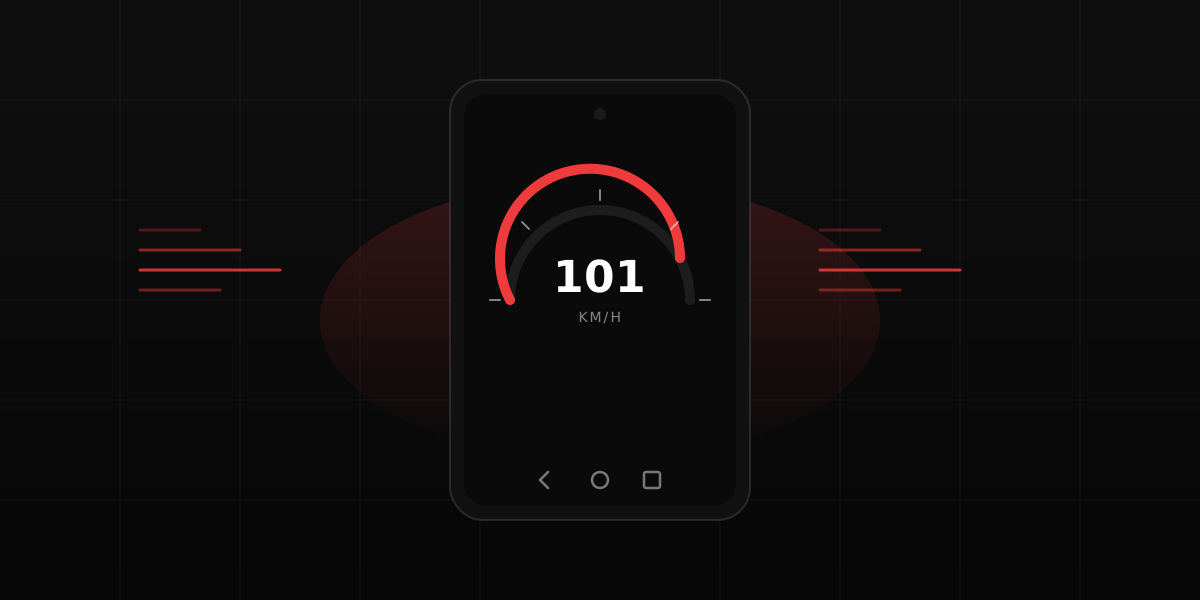
Every modern Android phone has a capable multi-constellation GPS chip. The trick is getting it to show you a speed reading, because Android has no system-wide speedometer of its own. There are several ways to do it, most of them free and most already on your phone. Here is what each one does, where it falls short, and which to reach for. This is the Android companion to our iPhone speedometer guide, and since Android is the larger platform worldwide, the options are if anything a little broader.
1. Google Maps speedometer (built in)
Google Maps ships on nearly every Android phone, and it has a
speedometer hiding in its settings. Once enabled, it shows
your current speed in a small badge in the lower corner of the
map, both during turn-by-turn navigation and, in most regions,
while you free drive with Maps open. The setting is easy once
you know the path: Maps > Settings > Navigation
> Speedometer. In the app, tap your profile picture,
choose Settings, then
Navigation settings, scroll to the Driving
options section, and toggle on Speedometer
(and Speed limits where your country supports
it).
With both on, the speed badge sits in the corner and turns red if you run more than a few mph over the displayed limit. This is the closest thing Android has to a default speedometer, and for most drivers it is all they need. The badge updates roughly once a second, smooth enough to feel live without jittering on every tiny GPS wobble. The catch is the same one Apple Maps has: you have to keep Google Maps in the foreground. Switch to a podcast or your home screen and the badge disappears. There is no persistent overlay, no notification, no lock-screen speed. Google has kept the speedometer a Maps feature rather than a system one, which is why a third-party app or a browser tool is still the only way to get a speed display that is not wrapped around a navigation map.
2. Android Auto dashboard speed
If your car supports Android Auto (most cars built after about 2017 do), the Google Maps speedometer carries straight over to the car screen. Connect the phone, start Maps in Android Auto, and the same speed badge appears on the larger built-in display, alongside the map and your music. This is the cleanest setup for daily driving: speed is visible without holding the phone, switching apps, or looking away from the road for long.
Android Auto speed comes from the same phone GPS chip as Maps on the handset, so the accuracy is identical. The only difference is presentation. On a wired Android Auto connection the lag from a speed change to the screen update is around a second; wireless Android Auto adds a small fraction more. Note that the badge only shows when Maps is the active app on the car screen, the same foreground constraint as on the phone.
3. Browser-based speedometer (no install)
You do not actually need an app at all. Chrome on Android (and any other modern Android browser) exposes the same GPS data through the standard Geolocation API. Open the browser, go to a web speedometer like gpsspeedometer.io, tap to begin, grant location permission once, and the page reads your speed directly from the operating system in real time. Nothing downloads, nothing installs, and your location never leaves the device.
The advantage over Google Maps is single-purpose focus: a large speed readout, an MPH/KPH toggle, and nothing else competing for the screen. On Android you can also add the page to your home screen from the Chrome menu, which gives it an app-style icon and a full-screen view without anything actually installing. The trade-off is the familiar one. You need to keep the browser in the foreground, and the page stops updating if the screen sleeps, so your display timeout matters. For a one-off trip, a single run, or a quick check on a dashboard reading, this is the route to try first. No commitment, no install, no account, and your location data never leaves the phone.
4. Play Store speedometer apps
A dedicated app earns its place the moment you want more than a number: trip recording, route maps, top speed history, a HUD mode that reflects readable digits off the windshield at night, or a 0 to 60 timer. None of that is possible in a browser, and Google Maps does not log trips for later review. The Play Store has dozens of speedometer apps, which fall into roughly three types. There are simple free speedometers (usually ad supported), trip and dashcam style apps that record routes and stats, and HUD or motorcycle focused apps with large-digit night displays.
Two caveats before you install one. First, permissions: a speedometer only needs location, so be wary of any app that also asks for contacts, the microphone, or phone state. Second, ads: many free apps run aggressive full-screen ads that pop up mid-drive, which is both annoying and unsafe. Read the recent reviews. For a curated shortlist of which apps are actually worth installing, see our roundup of the best speedometer apps. Whichever you pick, remember every app reads the same phone GPS chip and gets the same number; the differences are in the interface and the extras around it.
5. Samsung, OnePlus, and other OEM quirks
Android is not perfectly uniform across brands, so a few
details shift depending on who made your phone. On Samsung
Galaxy phones, the Google Maps steps above are identical, but
Samsung also ships its own aggressive battery optimization that
can throttle GPS in the background. If your speed lags or
freezes, check Settings > Battery > Background
usage limits and make sure your speedometer app or
browser is not being put to sleep. Samsung devices also expose
Precise versus Approximate location per app, and a speedometer
needs Precise to work at all.
OnePlus, Xiaomi, and other phones running custom skins behave similarly: the Google Maps speedometer works the same everywhere because it is a Google app, but each brand has its own battery and location management screens that can interfere with third-party apps. The fix is always the same. Grant Precise location, turn off battery optimization for the specific app, and the GPS speed reads exactly as it does on a stock Pixel.
How accurate is Android GPS, really?
Almost every Android phone made in the last several years uses a multi-constellation receiver that listens to GPS, GLONASS, Galileo, and BeiDou at once, the same setup found in an iPhone or a dedicated handheld unit. Under open sky with a few seconds to settle, the speed reading is accurate to within 0.5 to 2 mph at highway speeds. That is more accurate than the car's factory speedometer, which is typically calibrated to read 2 to 5 mph high for legal reasons. The reading comes from the Doppler shift in the satellite signals, not from comparing one position to the next, so it does not accumulate drift. We cover the physics in detail in how accurate is phone GPS speed.
Accuracy degrades in three situations: under thick tree cover, in tight urban canyons between tall buildings, and at very low speeds (below about 5 mph). In tunnels and parking structures with no sky view, GPS speed simply stops updating until you re-emerge. Google Maps handles this gracefully by dimming the badge. Browser speedometers usually freeze on the last reading. The one Android-specific wrinkle is fragmentation: a cheap phone with an older single-band GPS chip will be a touch noisier than a flagship with dual-frequency GNSS, but both land within a couple of mph at speed.
Which method should you use?
For a one-time check (verifying your car's dashboard, for example), the browser speedometer is the lowest-friction option. Open, tap, done, with nothing to install.
For daily driving with Android Auto, let the Google Maps speedometer ride on the car screen. It is always there while you navigate, hands-off, and accurate.
For driving without Android Auto but with Maps open on a phone mount, the built-in Google Maps speedometer with both toggles on is the best no-install choice.
For anything beyond the moment (tracking a road trip, logging a track day, measuring a 0 to 60 time, checking top speed at the end of a descent), a dedicated app makes sense. That is what apps are for. The decision is rarely about the speed reading, which is identical everywhere, and almost always about what is shown around it and whether you want the data saved.
The takeaway
You almost certainly do not need to install anything to see your speed on Android. The Google Maps speedometer and a browser cover most casual use, and Android Auto covers daily driving. A dedicated Play Store app earns its keep only when you want what an app can do that a single screen cannot, and even then it is worth checking permissions and ads first. The accuracy is the same in every case. It comes from the same chip, reading the same satellites, doing the same math. The difference is in the interface, not the number.
To try the no-install option right now, open the live GPS speedometer on your phone. To verify your car dashboard against the GPS reading, follow the car speed test walkthrough.